> ## Documentation Index
> Fetch the complete documentation index at: https://docs.webagent.ai/llms.txt
> Use this file to discover all available pages before exploring further.
# Book Meeting
> Enable your AI Chatbot to schedule meetings with Calendly
WebAgent.ai enhances your chatbot's capabilities by allowing it to schedule meetings directly through Calendly integration. This feature streamlines the booking process, making it easier for potential clients to connect with you.
To use this feature, you'll need to create a [Calendly profile](https://calendly.com/)
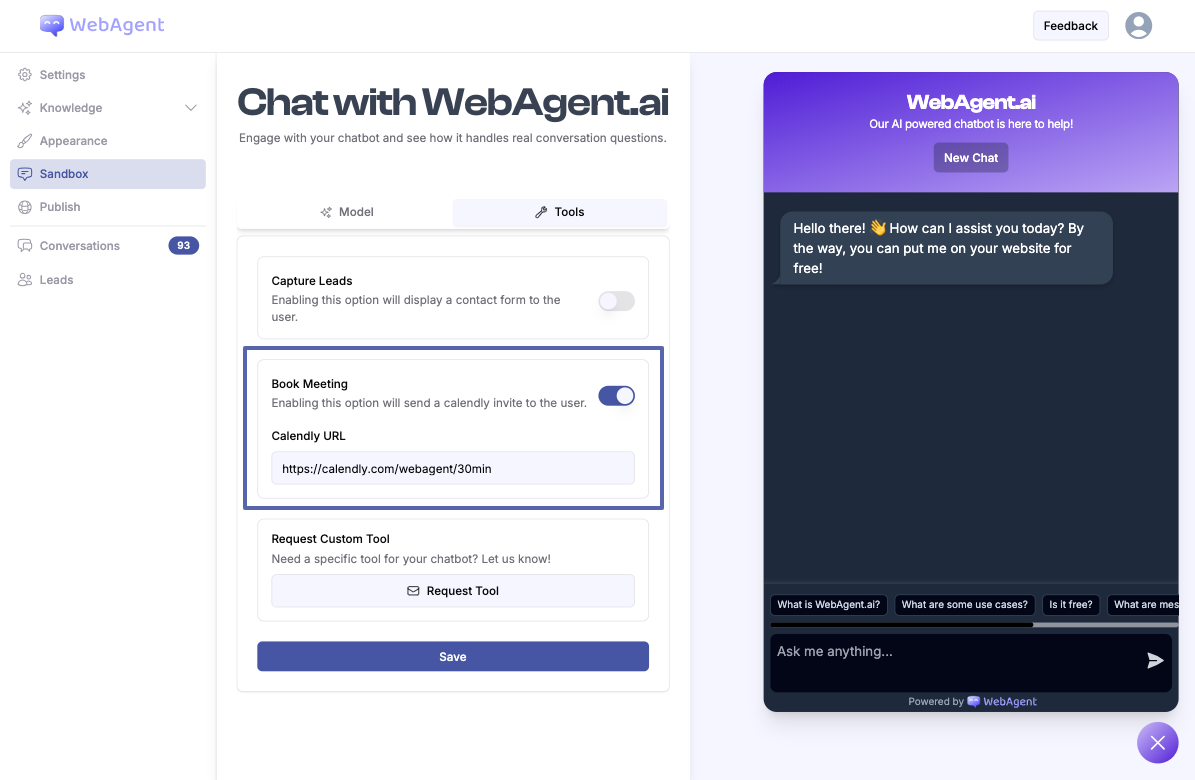
1. Go to your chatbot's **Sandbox** page.
2. Click on the **Tools** tab.
3. Find the **Book Meeting** option.
4. Paste your booking link.
 Once enabled, your chatbot can offer meeting scheduling to users:
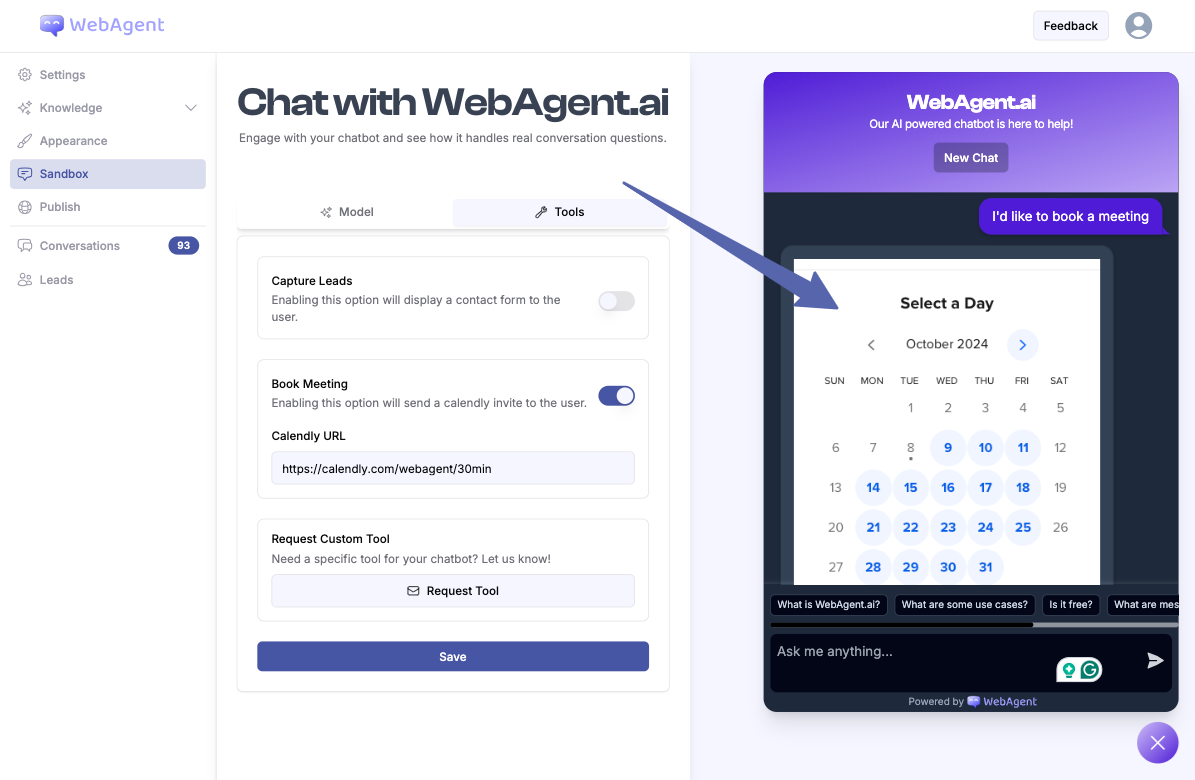
1. When a user requests to book a meeting or appointment (e.g., "I'd like to book a meeting", "Book meeting", "Schedule appointment"), the chatbot recognizes this intent.
2. The chatbot immediately responds by presenting the Calendly booking interface directly within the chat window.
Once enabled, your chatbot can offer meeting scheduling to users:
1. When a user requests to book a meeting or appointment (e.g., "I'd like to book a meeting", "Book meeting", "Schedule appointment"), the chatbot recognizes this intent.
2. The chatbot immediately responds by presenting the Calendly booking interface directly within the chat window.